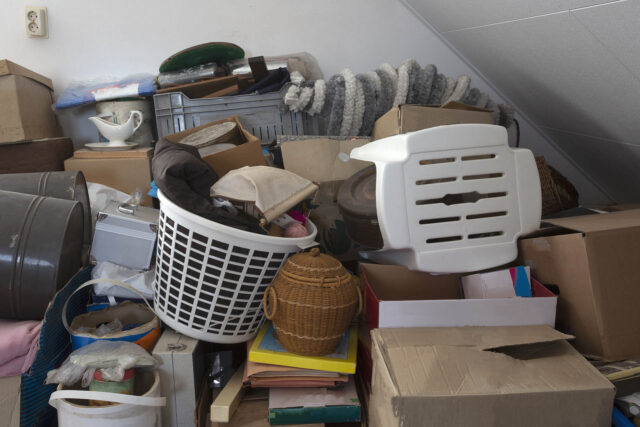
Help with hoarding
We’re here to help you at your own pace.

To get started, simply download the app from the Apple App Store, Google Play Store, or by searching for ‘Intratone’ on your mobile or tablet device.
For more details on how Intratone works, please watch this short video or click on frequently asked questions below.
If you don’t wish to download the Intratone app, or don’t have access to a mobile phone, you can still use the intercom as this will be attached to the phone number we have on file for you. Please see the ‘How do I use the intercom?’ tab below for more information.
Opening the main entrance door
To open the door at the main entrance of your building, hold your fob on the reader. If you have a hands-free fob, the door will open automatically when you are within 1 metre of the door.
Visitors access
Your visitor will be able to select your apartment number by using the arrows and then pressing the call button, or if you have a push-button intercom, pressing the button corresponding to your apartment number.
You will then receive a phone call to your landline or mobile. Answer the call and then follow the steps below:
If you do not answer and have a second household member attached to your intercom, the call will be transferred to them.
If you’ve set up the Intratone app, you’ll also be able to see a video of the visitor when they ring your bell, so you can decide whether to answer or ignore it. The caller cannot see you, and they will only know that you are home when you press the microphone button.
Don’t forget to save the intercom phone number in your contacts so that you can easily identify calls when you have a visitor. The number will start with +33 6 or +33 7 and will be between 10 and 14 digits long.
You can also download this information as a PDF.
If you’ve lost your fob, it’s important to get in touch and let us know as soon as possible so we can update the system and provide you with a new one (fees may apply).
You can add another household member or device to the intercom via the Intratone app and following the steps below.
To remove a household member or device from the intercom, visit the ‘My info’ section on the Intratone app.
The Intratone intercom works through two-way audio communication via phone calls. We have pre-programmed the intercom with the main phone number(s) that we hold for you, up to a maximum of two numbers.
If more than one phone number is programmed into the intercom, it is useful to decide who in the household is best to receive the first call, as the intercom will only ring the secondary number if the first call goes unanswered. Alternatively, if you have a landline, you can set the intercom to call your landline first and then call your mobile phone if you are not at home. It will do this automatically if you do not answer via the landline.
It is important to let us know of any change to your phone number so that your access to the building is not blocked. Please get in touch if you need to update your phone number.
Please note that the Intratone intercom has two separate software applications.
We use a secure data profile to manage the intercom panels and are the Data Controller for the information that is held against this profile. This information can only be accessed by relevant Onward colleagues, the authorised installation contractor and Intratone account manager.
We cannot routinely review access logs, however where tenancy management concerns are raised, investigations may take place in line with a documented procedure. If we delete a phone number from the profile, it will be deleted automatically from the Intratone app. In this case, the customer will lose access to the application because all data associated with that number is deleted.
For further information on our processing, please see our Privacy Notice.
A secondary application, the Intratone app, can only be accessed by a customer once we have added their telephone number to the management software. Customers must also download the Intratone app to their mobile phone or tablet and consent to its use.
Intratone (Cogelec) is the Data Controller for the information relating the Intratone app. Intratone (Cogelec) holds your data on secure servers located in France, and comply with the GDPR, this is equivalent to the UK GDPR. Your data is not sold or used for marketing purposes and is only shared with third parties that are essential to its operation, such as a cloud service provider or telecommunications company. Please see Intratone’s Privacy Policy for more information.

If you need help getting set up on the Intratone app, please get in touch.
We offer a range of additional support for customers, from advice on how to manage your finances to help with hoarding.
We’re here to help you at your own pace.
Get free, confidential advice from our Money Advice Team.
Enhance your skills with training and support.

Need to speak to us? We’re just an email or phone call away.